|
Commitment/Policy Printing |
  
|
|
Commitment/Policy Printing |
|
Getting There
The Policy Print dialog box of Turbo Policy can be accessed by clicking the Print button on the Turbo Policy button menu.
Description
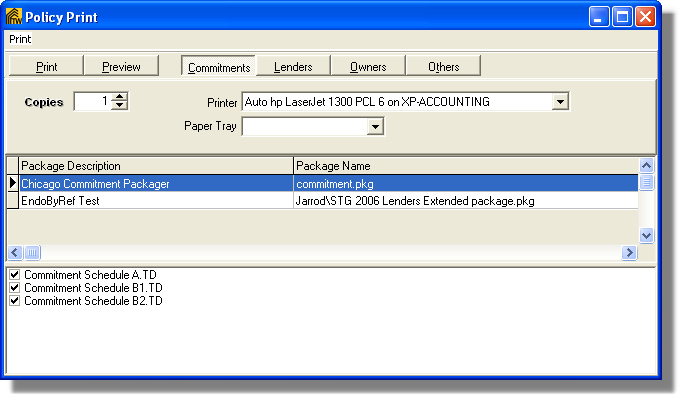
The Print function in Turbo Policy allows you to print a commitment, or other specific policies/packages for a particular file. The Policy Print Dialog box functions much like the Document Packages Dialog box in Document Prep.
To Print a Policy
1. Make certain that document packages have been assigned to your underwriters and that you have an underwriter assigned to your policy.
2. Choose Print from the file menu in Turbo Policy or click the print button on the toolbar.
3. Choose the desired policy from the Print Menu (Commitment, Owners, Lenders, Other) or click on the corresponding button.
4. Verify that under package description and Package Name the correct package has been chosen and that all the necessary documents are listed below.
5. Check the boxes next to the documents on or off to make sure you print the desired documents.
6. Click the Preview button to preview the documents in Document Prep.
7. Click the Print button to print the documents without previewing them.