|
Policy Notes |
  
|
|
Policy Notes |
|
Getting There
The Policy Notes portion of Turbo Policy can be accessed by clicking the Turbo Policy button on the main screen and then selecting the Policy Info tab
Description
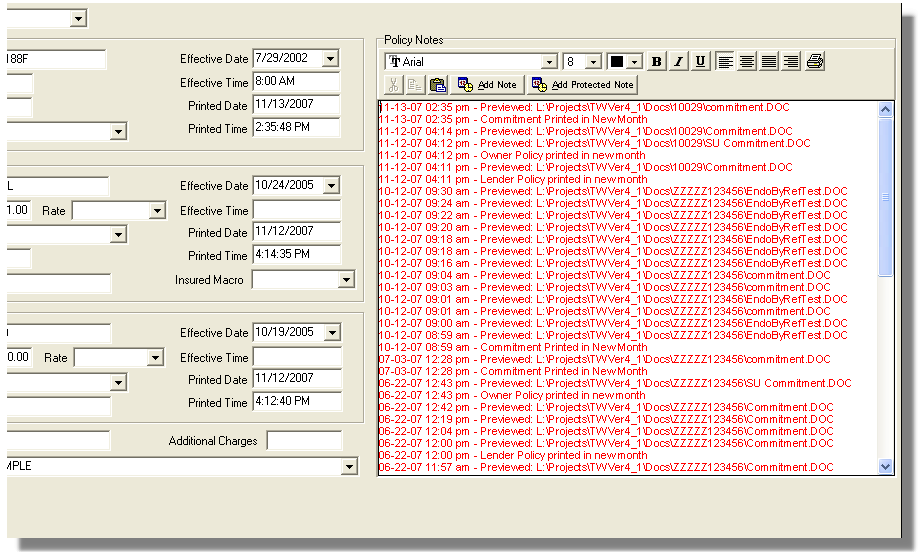
Policy notes are similar to file notes but relate to policies and commitments. Notes may be entered 3 different ways.
1. Simply type the notes in the Policy Notes box.
2. Click the "Add Note" button to add a note along with a timestamp.
3. Click the "Add Protected Note" button to add a note and timestamp that cannot be deleted.
NOTE: Protected notes are shown in red and cannot be changed or edited. All other notes may be changed and edited by typing or using any of the edit controls found on the toolbar above the notes box.