|
Document Packages |
  
|
|
Document Packages |
|
Getting There
Document Packages can be accessed from Doc Prep by selecting => File | Document Packages or by using the Ctrl + K shortcut. (For Doc Designer, select => Design | Document Packages or the short cut Ctrl + K)
Description
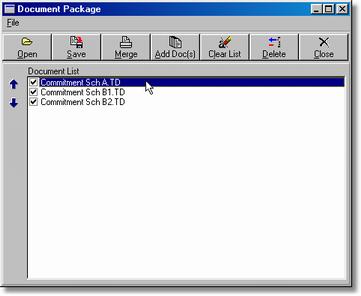
This application allows the user to create, save, and print one or more "Packages" of documents which are frequently printed together. Document packages can be created by the user to fit individual needs. Document Packages are saved with a .pkg extension.
To Create new Packages
1. Make sure that there are no entries in the Document List unless adding to an existing package.
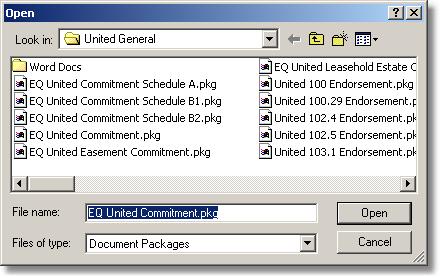
2. Click on the Add doc(s) button or use the Ctrl+A shortcut.
3. Click on a document to be placed in the package or type the document file name in the File name field and then click Open.
4. Documents are automatically placed in the package. To add more documents to the package repeat steps 2 and 3.
5. Click the Save button or use the Ctrl+S shortcut to save the new package.
6. To delete a document from the package, click on the document to be deleted and then click the Delete button or use the Ctrl+D shortcut. The selected document will be taken from the list.
To Open new Packages
1. Click on the Open button within the Document Package screen.
2. Select the Package to be opened and click on Open.
To Print a Package
1. Open the Package that you want to print.
| 2. Select print from File | Print or use the shortcut Ctrl+P. |