|
Employee Setup |
  
|
|
Employee Setup |
|
Getting There
Employee Setup can be accessed from the Main menu. Select => Maintenance | Employee Setup
Description
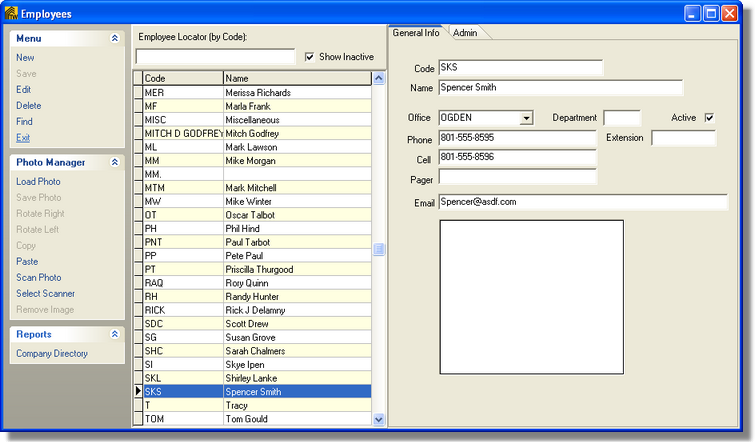
The Employee Setup dialog box allows the user to add or edit information used to setup an employee database. The information pertaining to the employees using Turbo Title for Windows can be reflected on the orders when they are setup. The Employee information is also used in tracking orders (if desired) and running reports as well as in different locations throughout the program. A list of all employees entered into the system can be obtained by printing the Employee List.
Other information in Turbo Title for Windows that depends on the employee setup information:
| • | Order Taken By |
| • | Escrow Officer |
| • | Closing Officer |
| • | Salesperson |
| • | Employee (used in department tracking) |
NOTES
| • | To changed existing and/or saved information you must first click the Edit button. |
| • | If assigning an employee to an office, the necessary office information must first be entered in the Office Setup dialog box. |
| • | Employee codes can contain letters and numbers, however, each employee code needs to be unique from all others. If a non-unique code is entered, you will encounter an 7057 error. |
| • | An employee's Security Level and Password are not needed unless you are using the user security features of Turbo Title for Windows. If using the user security features, the password is the password needed to login to the program and the security level determines what parts of the program the user has access to. |
To Setup a New Employee
1. Choose Employee Setup from the Maintenance Menu.
2. Select New from the Employee Setup dialog box.
3. Enter an Employee Code to identify the employee.
4. Enter any other necessary information to help identify the Employee.
5. Click the Save button to save all changes.