|
Security Setup |
  
|
|
Security Setup |
|
Getting There
Security Setup can be accessed from the Main menu. Select => Maintenance | Security Setup
Description
By default, Turbo Title for Windows user security features are disabled allowing employees access to all parts of the program. When security is enabled, users must login to the program on startup. The security setup allows a system administrator to set passwords and limit user access to only authorized portions of the program. For more information about security features or security configuration refer to the Turbo Title for Windows System Administrator manual or contact Wasatch Data, LLC.
Please also watch our short introduction video, How To Use Security Setup
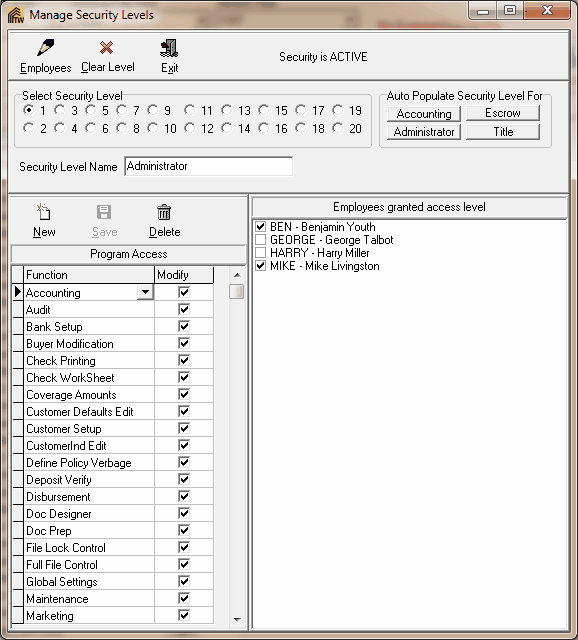
Adding new program access fields:
Steps:
1. Select the security level by clicking one of the twenty radio buttons.
2. Add a 'Program Access Function' by clicking the 'New' Button or the shortcut Alt + N and then using the drop down list to add the desired access.
3. Check the modify column to allow the user the ability to modify or delete within the feature. (NOTE: Only "Turbo Escrow" and "Turbo Policy" are clickable in the modify column. If one of those two are unchecked, it means that the employee can only "read only" or "view only" and may not have access to do any modifications.)
4. Press the 'Save' Button.
5. Repeat steps 2 thru 4 until all desired features are added.
6. You also may click one of the "Auto Populate Security Level For" buttons, and will automatically fill the Program Access box with pre-determined functions you can use. You also can add new functions to these Auto-Populate by using the steps 2 thru 4.
Adding and Editing Employees:
Switch to the Employee Setup screen by pressing the Employees button at the top or press Alt + E. You can now create and edit employee information and credentials.
To assign employees to a specific security level, simply select one of the twenty security levels, and then check the box next to the employee's name that you wish to assign to that level.
NOTE: An employee may only be assigned to ONE security level at a time.
To close Press Exit.