|
Department Setup |
  
|
|
Department Setup |
|
Getting There
Department Setup can be accessed from the Main menu. Select => Maintenance | Department Setup
Description
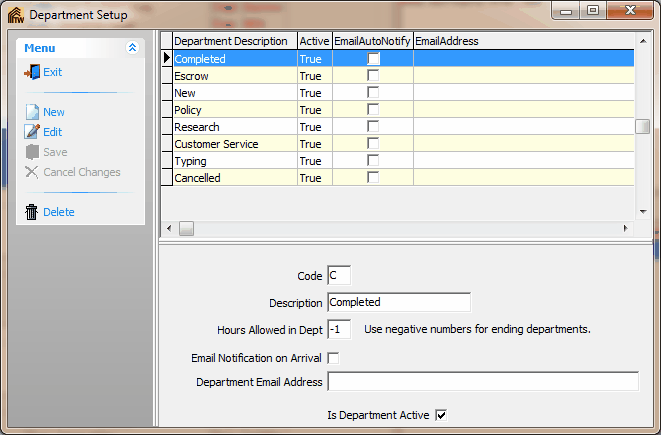
The Department Setup dialog box allows you to setup departments that are used in order tracking. New Order is a default department and is automatically assigned to every new order. Other departments can be setup and used as needed or it may be decided to use no other departments at all. Departments may also be used in reports and filters as well. A list of all departments entered into the system can be obtained by printing the Department List.
NOTE
| • | To changed existing and/or saved information you must first click the Edit button. |
| • | Department codes can contain letters and numbers, however, each department code needs to be unique from all others. If a non-unique code is entered, you will encounter an 7057 error. |
| • | If no Hours Allowed are set for the department, files in that department will always be shown in red on the Tracking screen, Order Quicklist, Quick Date Spans, and Quick Departments. |
| • | The Default 'New Order' department information may not be altered or changed. |
To Setup a New Department
1. Choose Department Setup from the Maintenance Menu.
2. Select New from the Department Setup dialog box.
3. Enter a department Code to identify the department.
4. Enter a department description (or Name) that you want associated with the department.
5. (Optional) Choose a set number of hours that a file is allowed to be in a specific department. (If a file is kept in a specific department for more than the specified allowed time, the order will show up in red in some areas of the program.)
6. Click the Save button to save all changes.