|
Notes |
  
|
|
Notes |
|
Getting There
The Notes tab can be accessed by double clicking the order on the main screen or by using the F3 shortcut from anywhere in the program.
Description
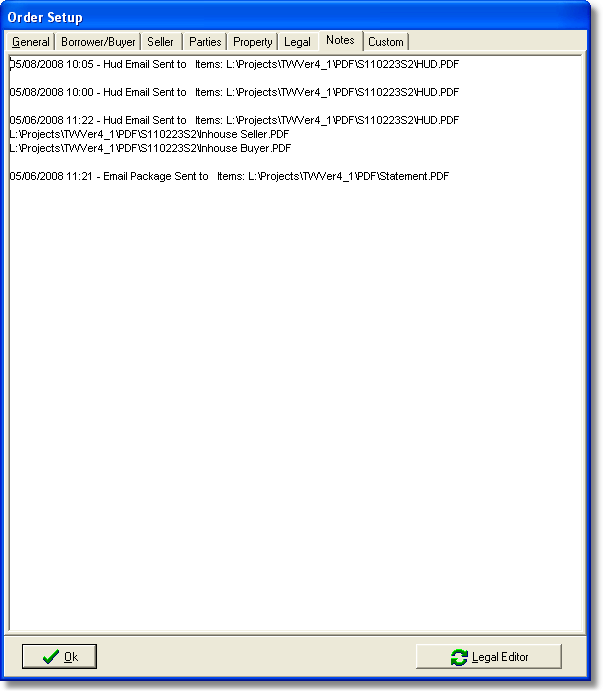
The Notes tab of the Order Setup allows the user to type any notes there may be pertaining to that order. Notes that are made in this screen are displayed in the Order Notes field of the Turbo Title for Windows main screen when the specific order is selected from the Order Details list.
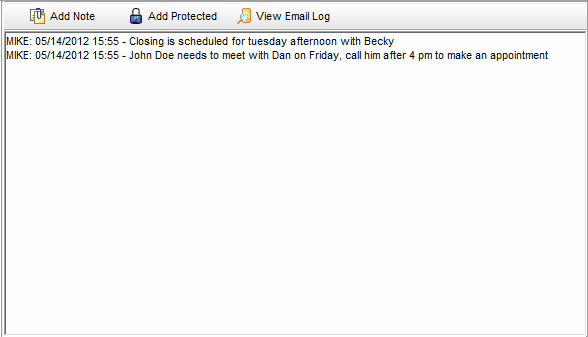
Main Screen Order Notes
The Order Notes field allows the user to quickly view any notes which have been entered in the Order Setup screen pertaining to that specific order. When a specific file is selected the notes for that file are displayed automatically. Order Notes may be edited 4 different ways: 1) Double click the Order Notes box on the main screen to edit notes in the notes editor. 2) Click the "Add Note" button to add a note with a Timestamp. 3) Click the "Add Protected Note" button to add a note and timestamp that cannot be deleted. 4) Return to the Notes tab on the Order Setup screen and make changes there.
NOTE: Protected notes will be shown in red and cannot be edited or removed.