|
Property Search |
  
|
|
Property Search |
|
Getting There
Property Search is accessed from the Main menu. Select => File | Property Search, or use the shortcut Ctrl-F9.
Description
The Property Search function allows you to locate a file based on property information. Files may be searched by Property ID, Street Address, Short Legal or Legal description.

To Search for a Property:
1. Select Property Search from the File menu on Turbo Title for Windows main screen.
3. In the Sort field, select the criteria to use in searching for a property. (Property ID, Street, Short Legal or Legal)
4. In the Search field, enter the information for the property that you are searching for. The first file that most closely matches your information will automatically be highlighted.
5. Once the desired file is Selected, click OK or double click the highlighted file to return to the Property Search dialog box.
6. From the list of files that reference the desired property, double click on the desired file or use the Alt + G shortcut to go to that file.
Property Filter
Getting There
The Property Filter is accessed from the Property Search Screen. Select the Set Filter button on the Property Search Screen.
Description
A custom filter may be created and applied to the Property Search dialog box to aid you in searching for a particular file or property.
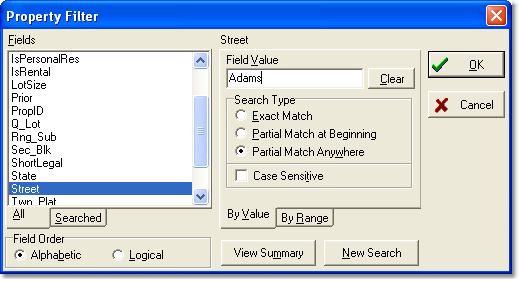
To Create a Property Search Filter
1. Click the Set Filter button on the Property Search Dialog box.
2. At the Property Filter dialog box, Choose which field(s) you want in the filter.
5. For some fields you will need to specify a range. (For example to filter by date you need to specify a beginning and an ending date.) For other fields you will need to specify a value. (For example to search by county you must specify which county.)
6. Click Ok to apply your filter to the Property Search dialog.
7. Click Close to leave the Filter Setup menu.