|
General File Search |
  
|
|
General File Search |
|
Getting There The easiest way to access the General File Search is to press F9 and click on the link that reads "General File Search" found in the "Searches" section.
Description The General Search window allows you to enter in data that matches the file you are looking for and place a search.
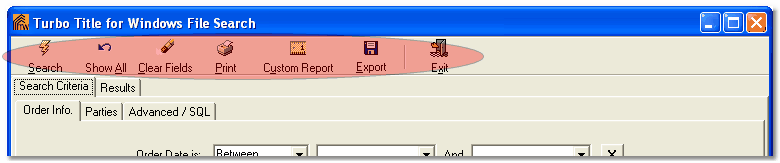
Search - Show All - Clear Fields - Print - Custom Report - Export - Exit
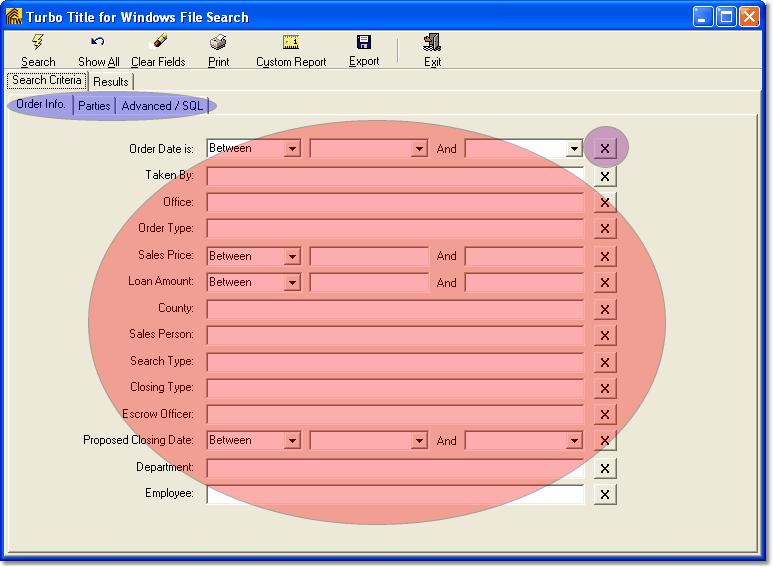
Entering Your Search Criteria : Enter the terms that you wish to search by in the fields shown highlighted in red below. The more terms that you enter, the more narrowed your search results will be. Note the other tabs under which you can enter search terms (show in blue.) The parties tab works the same way the Order Info tab works, you enter in the information such as buyer, seller, lender etc. The Advanced/SQL tab is for use by people that have a knowledge of SQL coding. When you enter a search in the other two tabs, the software builds that code for you. After you have clicked the Search button you can click the Advanced/SQL tab and view the code that was built for your search.
Search Criteria and Results: The Search Criteria and Results tabs allow you to switch between the terms you entered for your search and the results therefrom. If you wish to change or narrow your search, switch to the Search Criteria tab and make your changes, then, press Search again. To start a whole new search, press the "Clear Fields" button found at the top of the window.
|