|
Disbursement Worksheet |
  
|
|
Disbursement Worksheet |
|
Getting There
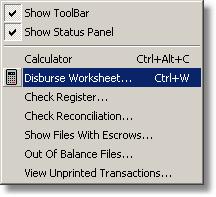
The Disbursement Worksheet can be accessed from the Check Entry screen by selecting => View | Disburse Worksheet, the Worksheet button on the Check Entry button menu, or by the shortcut Ctrl+W.
Description
While viewing the Check Entry screen, the Worksheet button or the Ctrl+W shortcut will bring up the disbursement worksheet with information taken from the HUD Settlement Statement forms for that order. The ChecksSave button will save any changes made on the worksheet and send the check information to the Check Entry form. The ChecksSave button should only be used once final worksheet information is entered. The exit button will close the worksheet.

>> The "Sperate Checks/Totals" Panel includes columns that indicate check numbers, the Check
Type or Payee for the check, and the total amount of the check. By clicking the drop down
menu for Check Type, the user can select from the list who will be the payee for that specific
check. Turbo Title for Windows pulls this information from the setup screens. Selecting
"Generic" as the payee will write the check to the person's or company's name entered on
the Stub Entries Description line for that check.
>> The "Stub Entries on Checks" panel allows the user to make check stub entries. Enter the number
of the check to specify the check where the entries will appear. Enter a brief description for the
check and amount in the appropriate columns. If 99 is entered as a check number on the stub
entry form, the amount will be entered as "Less Reductions" withheld for the title company and
not entered with other checks